

Juror Tutorial (V2)
This tutorial walks you through participating as a juror on Kleros Court V2 at v2.kleros.builders, the next-generation court on Arbitrum. No signup or personal information is required.New to Web3 entirely? The Complete Beginner’s Guide to Kleros Court V2 on Notion covers everything from wallet setup and seed-phrase security to your first case, with screenshots for every step.
What You Need
- A Web3 wallet: Rabby (recommended, auto-detects networks) or MetaMask
- PNK tokens on Arbitrum
- ETH on Arbitrum for transaction fees (keep roughly 20-30% of your budget as an ETH buffer)
Set up Arbitrum One
Kleros V2 runs on Arbitrum One (Chain ID 42161), a Layer 2 that keeps Ethereum’s security with much lower fees. Rabby detects and switches networks automatically. In MetaMask, add the network manually (RPChttps://arb1.arbitrum.io/rpc, currency ETH, explorer arbiscan.io) or use chainlist.org.
Get PNK on Arbitrum
- Directly in the Court interface: use the “Get PNK” option
- DEXs: swap ETH for PNK on Uniswap while connected to Arbitrum
- Centralized exchanges: see the listings on CoinGecko, then bridge to Arbitrum
- If you hold PNK on Ethereum, bridge it via bridge.arbitrum.io
Understanding Courts and Parameters
Courts form a hierarchy: the General Court (ID 1) is the root, with specialized courts beneath it (Blockchain, Curation, English Language, and others) and the Forking Court (ID 0) reserved for protocol disputes. Staking in a specialized court automatically stakes you in all its parent courts. Beginner-friendly courts include the General Court and the English Language Court. Specialized courts such as Blockchain Technical, Curation, Insurance, and the Corte de Disputas de Consumo y Vecinidad (inside Corte General en Español, which serves enterprise cases like Lemon and MetLife) expect specific expertise. Each court page shows the parameters that matter to you: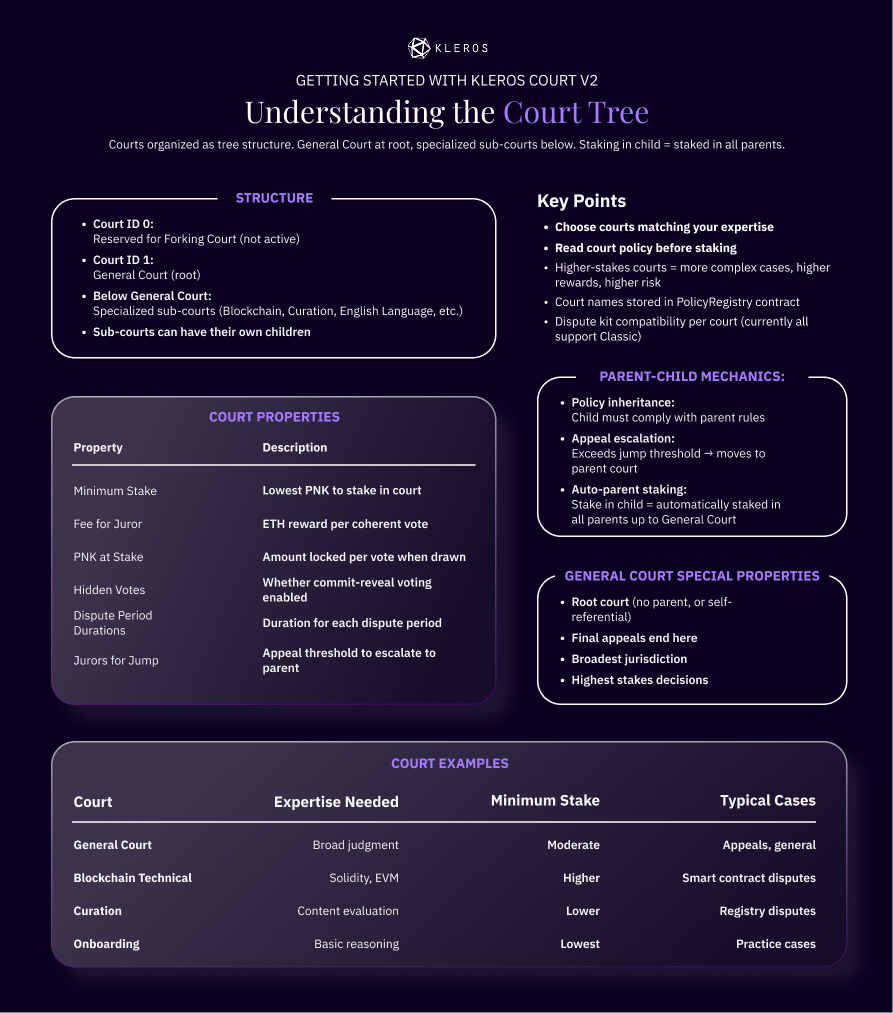
One-pager: Court Hierarchy and Parameters (infographic to be added)
Staking Your PNK
1
Open the Court and connect
Visit v2.kleros.builders, click Connect Wallet, and approve the connection. Make sure you are on Arbitrum One.
2
Choose your court
Click Courts, browse the tree, and open a court to review its policy, minimum stake, fee per juror, and recent cases.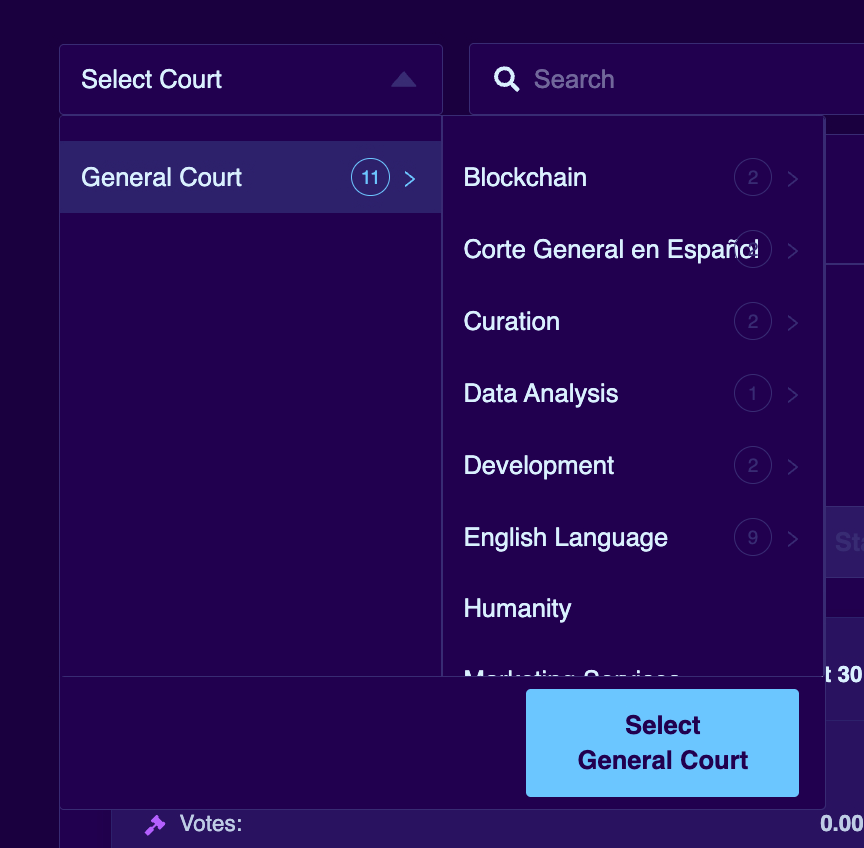
3
Approve PNK
Staking requires a standard ERC-20 approval so KlerosCore can use your PNK. You approve each time you increase your stake.
4
Set your stake
Click Stake, enter an amount at or above the court minimum, and confirm in your wallet.
5
Verify
Confirm your stake appears correctly on your profile.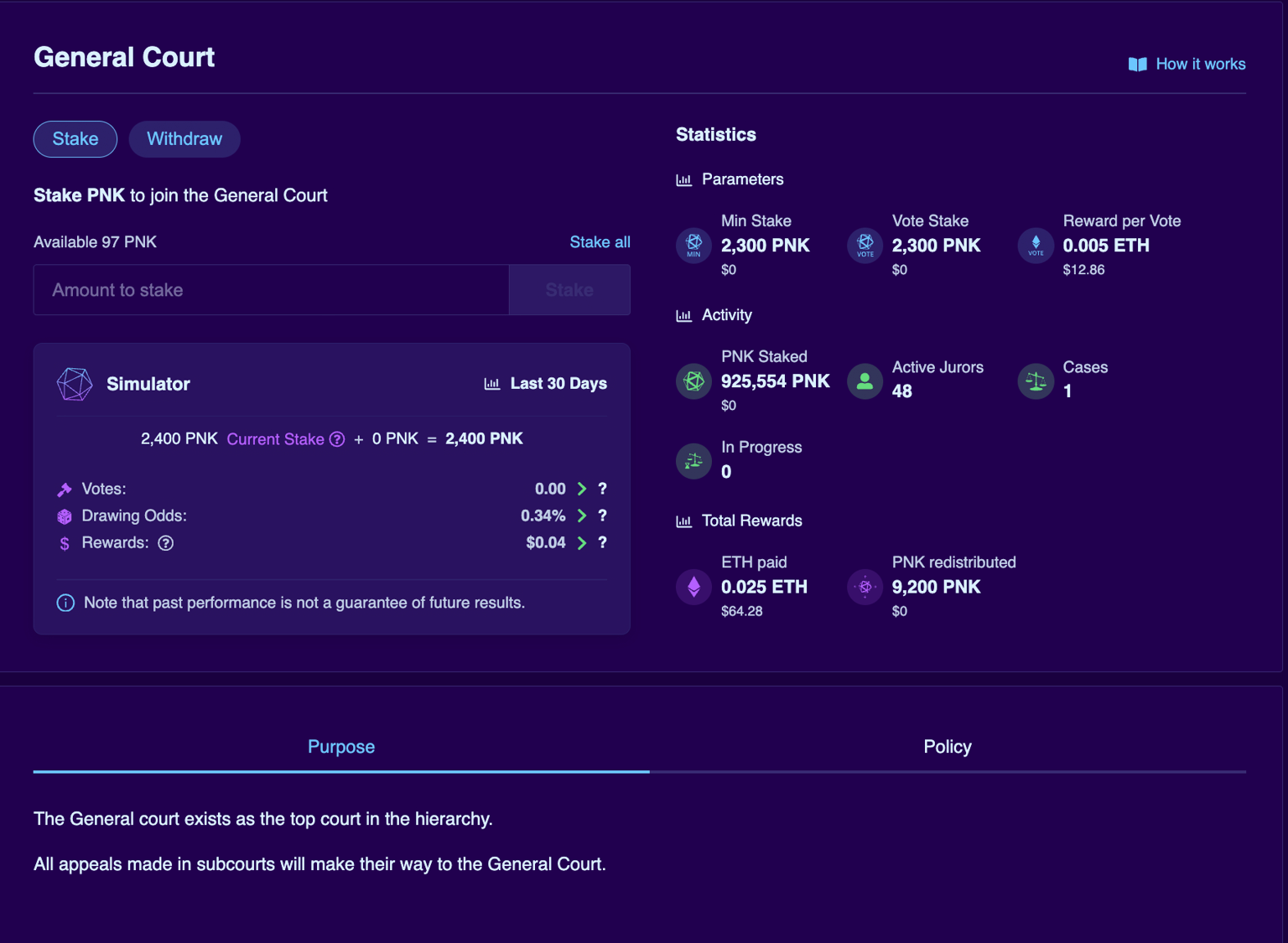
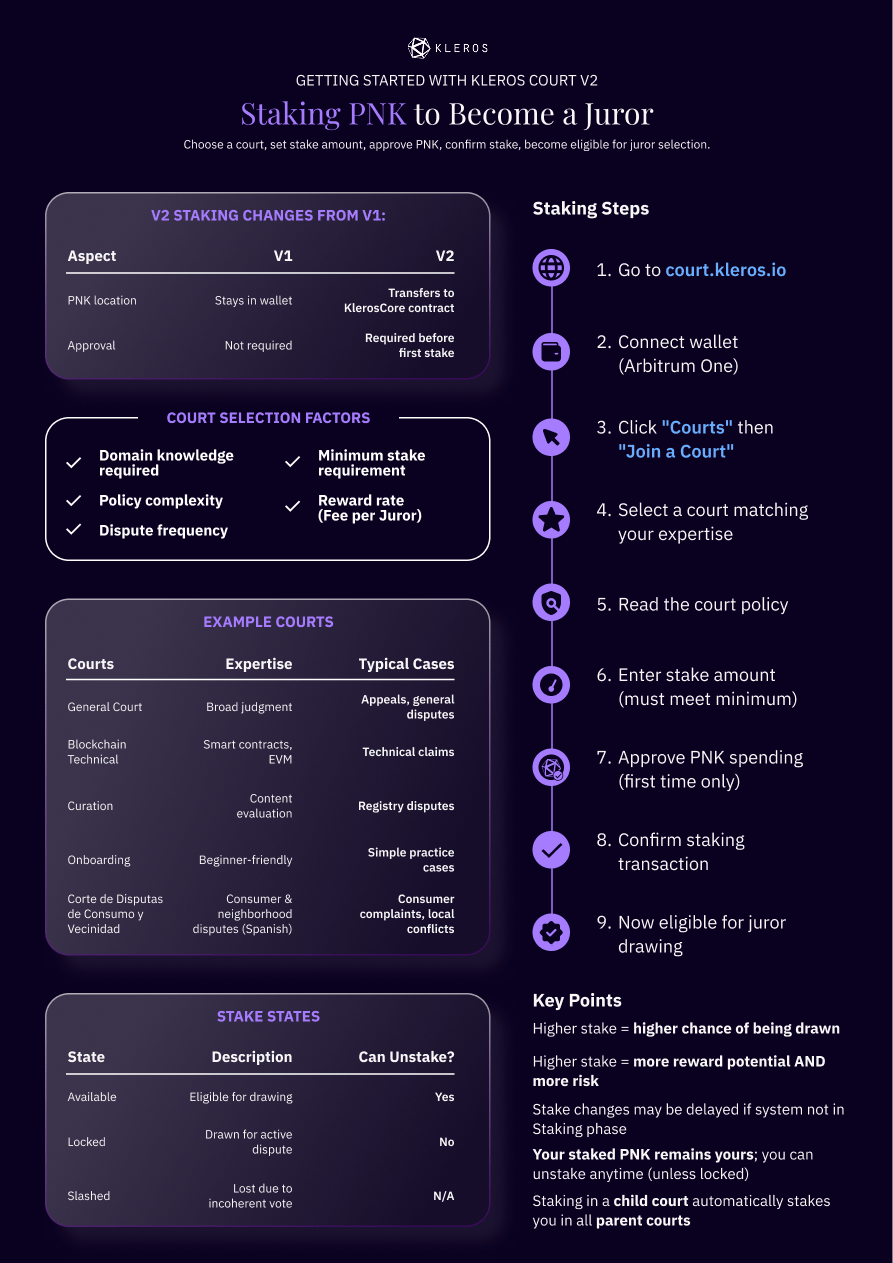
One-pager: Staking Flow in V2 (infographic to be added)
- Your PNK transfers to the KlerosCore contract while staked (in V1 it stayed in your wallet). You can unstake anytime unless it is locked in an active case.
- You can stake in at most 4 courts (a gas-efficiency limit), so plan your court selection.
- Timing matters: the court cycles through Staking, Generating, and Drawing phases. Stake changes made during the Generating or Drawing phases are recorded but only take effect in the next Staking phase. The UI shows whether your stake is “Current” or “Delayed.”
Getting Selected
Selection is random but stake-weighted: your probability per draw is your stake divided by the court’s total stake (5,000 PNK in a court with 100,000 PNK staked gives you a 5% chance per draw). You can be drawn multiple times for the same case; each draw is one vote, and all your votes must be for the same choice. When drawn:- A portion of your stake is locked as collateral
- The case appears in My Cases
- You are notified in the interface (and by email if you enabled notifications in Settings, which is strongly recommended for deadline reminders)
Handling Your First Dispute
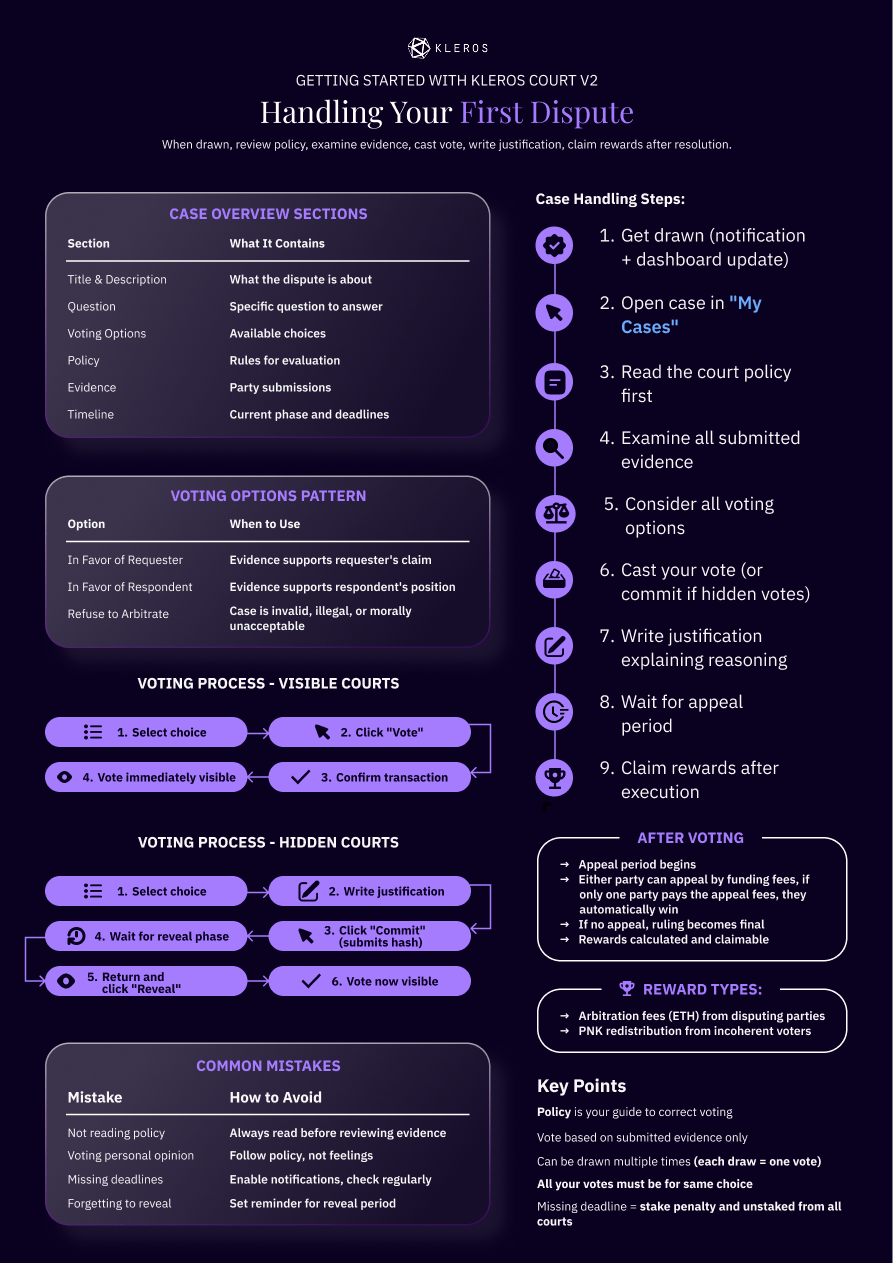
One-pager: Handling Your First Dispute (infographic to be added)
1
Get drawn
You receive a notification and your dashboard updates.
2
Open the case in My Cases
The case view has these sections: Title & Description (what the dispute is about), Question (the specific question to answer), Voting Options, Policy (rules for evaluation), Evidence (party submissions), and Timeline (current phase and deadlines).
3
Read the court policy first
The policy is your guide to correct voting. Read it before looking at evidence.
4
Examine all submitted evidence
Read everything thoroughly, check submission timestamps, verify technical claims, and take notes on key points. Budget real time for this (2-4 hours for a substantial case).
5
Consider all voting options
The common pattern is: In favor of Requester (evidence supports the requester’s claim), In favor of Respondent (evidence supports the respondent’s position), and Refuse to Arbitrate (the case is invalid, illegal, or morally unacceptable).
6
Cast your vote (or commit if hidden votes)
See the two voting flows below.
7
Write your justification
Explain your reasoning: a brief case summary, the key evidence you reviewed, the relevant policy sections, and your conclusion. Justifications support Markdown formatting, help jurors in appeal rounds, and create precedent.
8
Wait for the appeal period
Either party can appeal by funding fees. If only one side pays the appeal fees, that side automatically wins.
9
Claim rewards after execution
Once the ruling is final and executed, rewards become claimable.
Voting in visible courts
- Select your choice
- Click Vote
- Confirm the transaction
- Your vote is immediately visible
Voting in hidden courts (commit-reveal)
- Select your choice
- Write your justification
- Click Commit (submits a hash of your vote)
- Wait for the reveal phase
- Return and click Reveal
- Your vote is now visible
Common mistakes
Missing a deadline means a stake penalty and being unstaked from all courts.
Rewards and Penalties
You earn rewards for voting coherently with the final outcome:- Arbitration fees (ETH or whitelisted ERC-20s) paid by the disputing parties, divided among coherent jurors:
jurorReward = (totalFees / numberOfCoherentVotes) × degreeOfCoherence - PNK redistribution from incoherent jurors:
pnkReward = (totalPenalties / numberOfCoherentVotes) × degreeOfCoherence
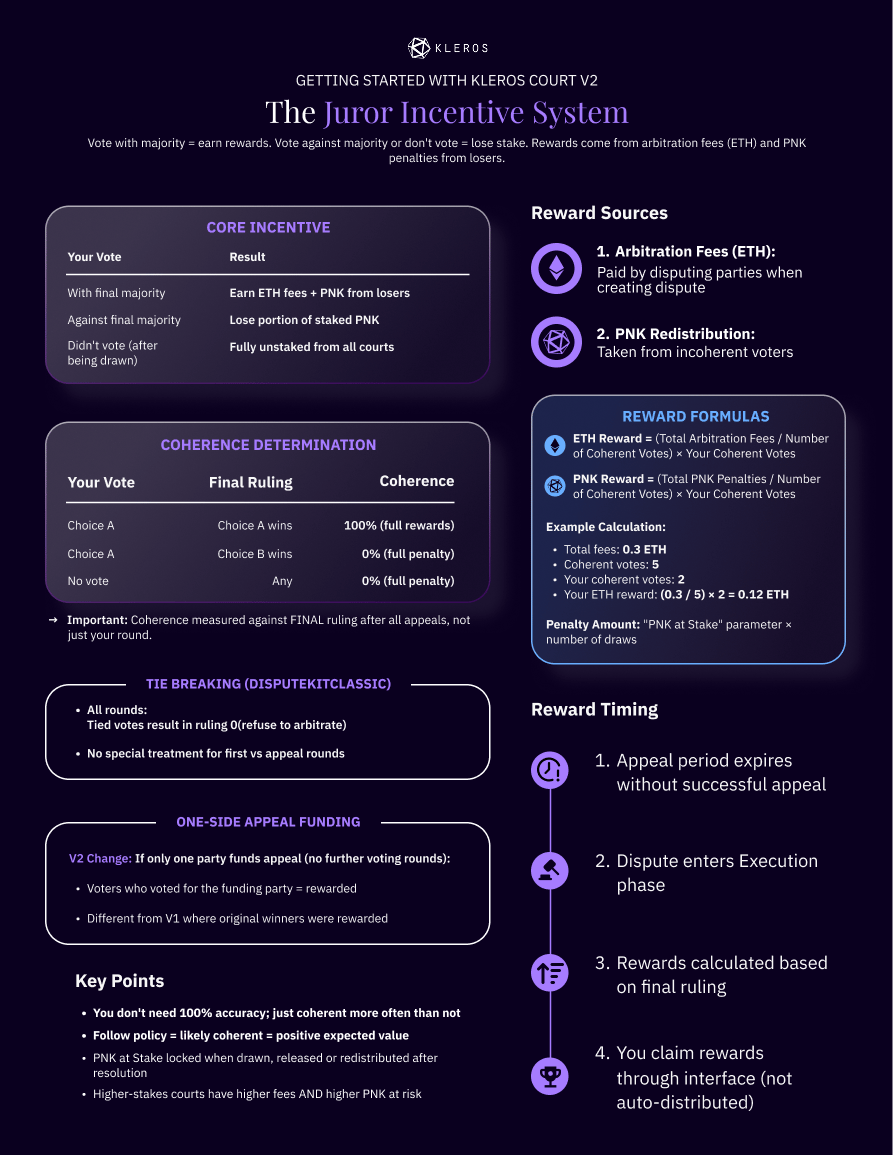
One-pager: Juror Rewards and Coherence (infographic to be added)
Appeals and Court Jumps
- Appeal funding follows
feeForJuror × ((nbVotes × 2) + 1): the winning side must fund 1× the appeal cost and the challenging side 2×. With 3 jurors at 0.05 ETH, that is 0.35 ETH for the winner and 0.70 ETH for the challenger. - The challenger can only fund during the first half of the appeal period; the winner has the entire period.
- Each appeal round increases the juror count (
n×2 + 1). When the count reaches the court’sjurorsForCourtJumpthreshold (for example, 511), the dispute escalates to the parent court, and juror numbers adjust to the new court’s parameters. You may be drawn for jumped cases; expect them to be more complex.
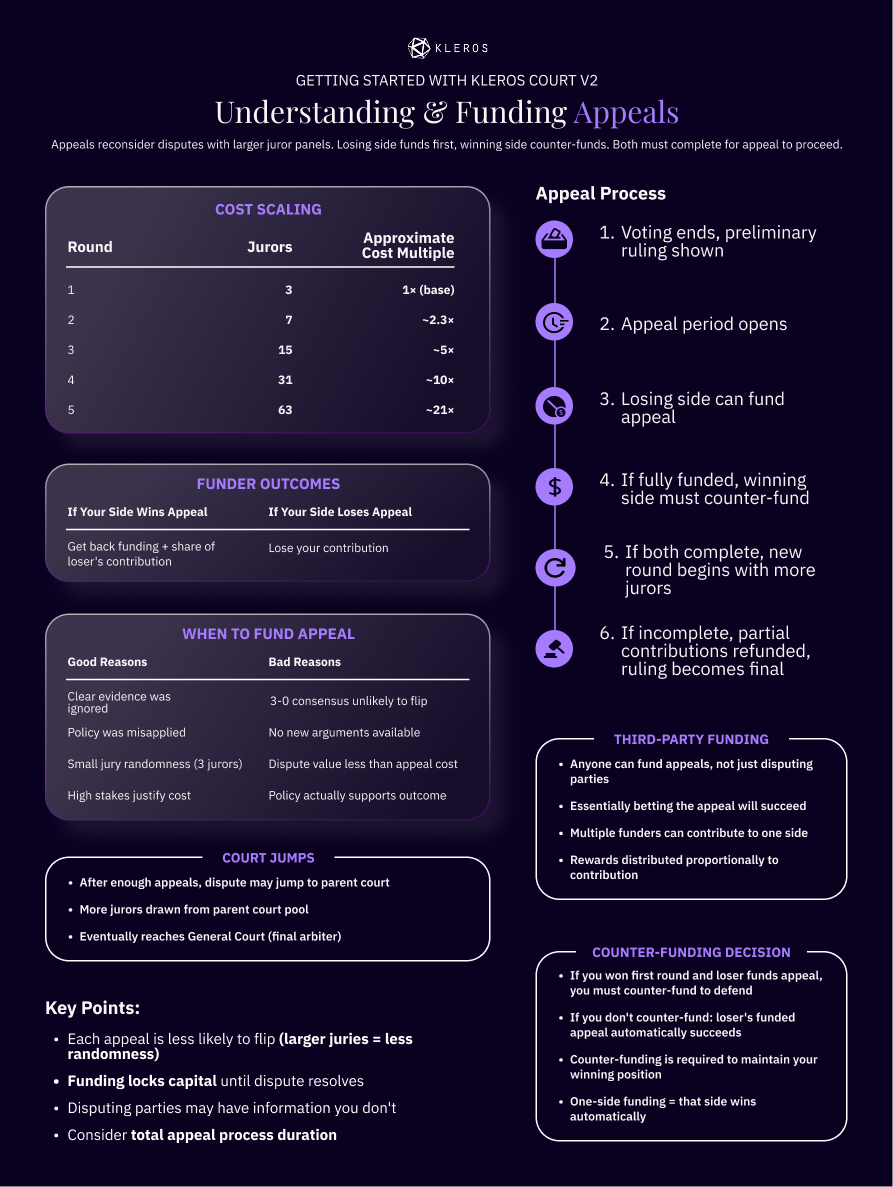
One-pager: Appeals and Court Jumps (infographic to be added)
Cross-Chain Disputes
V2 natively supports disputes originating on other EVM chains (Ethereum, Gnosis Chain, Polygon, Optimism, and more). As a juror, everything happens on Arbitrum: disputes are bridged in, evidence appears unified in the interface, and rulings are bridged back to the origin chain. The process is identical for you regardless of where the dispute came from.Troubleshooting
For help: Discord, Telegram, or support@kleros.io.
What’s Next?
Beginner's Guide (Notion)
The complete beginner’s walkthrough with screenshots
How Kleros Court Works
The full dispute lifecycle in V1 and V2
PNK Token
What PNK is and where to get it