> ## Documentation Index
> Fetch the complete documentation index at: https://kleros.mintlify.site/llms.txt
> Use this file to discover all available pages before exploring further.
# PoH: Transferring a Profile
> Move your Proof of Humanity 2.0 profile between Ethereum Mainnet and Gnosis Chain: initiate the transfer, switch networks, relay the state, and confirm.
# Proof of Humanity Tutorial: Transferring a Profile
Proof of Humanity 2.0 operates on Ethereum Mainnet and Gnosis Chain. A profile can only be active on one chain at a time, but you can transfer it between chains.
Make sure you have enough funds to transact on your desired new chain to update or complete the profile transfer.
***
## Transfer Steps
Navigate to your profile page and select the **Transfer** button.
 A confirmation prompt appears asking you to verify the transfer action. Confirm the transaction.
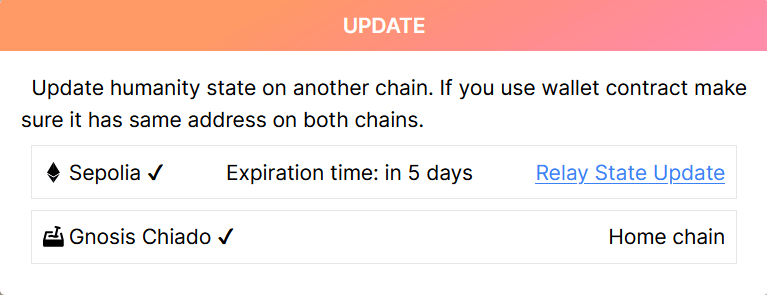
After the transaction confirms, your profile status becomes **Pending Update**. Connect your wallet to the destination chain, visit your profile, and click **Update state**.
A confirmation prompt appears asking you to verify the transfer action. Confirm the transaction.
After the transaction confirms, your profile status becomes **Pending Update**. Connect your wallet to the destination chain, visit your profile, and click **Update state**.
 Select **Relay State Update** from the prompt and confirm the transaction on the new chain.
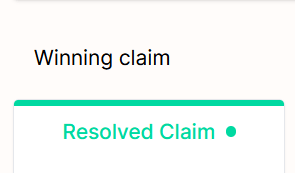
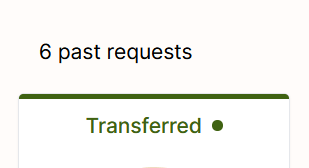
 Once validated, your current profile request shows as **Resolved Claim** with the new network's icon. The previous request status changes to **Transferred**.
 ***
## What's Next?
Register your profile on Proof of Humanity
Challenge or remove profiles
***
## What's Next?
Register your profile on Proof of Humanity
Challenge or remove profiles