> ## Documentation Index
> Fetch the complete documentation index at: https://kleros.mintlify.site/llms.txt
> Use this file to discover all available pages before exploring further.
# PoH: Register and Vouch
> Step-by-step guide to Proof of Humanity 2.0: register a human profile with photo and video, get vouched by existing humans, and vouch for other applicants.
# Proof of Humanity Tutorial: Register & Vouch
This tutorial covers the Proof of Humanity 2.0 registration process: registering your profile, the validation process, and vouching for others.
To challenge or remove profiles, see the [Remove & Challenge tutorial](/tutorials/poh-remove-and-challenge).
***
## Phase 1: Register Your Profile
Navigate to the [PoH v2 application](https://v2.poh.id/), where you can view recently registered profiles.
Click **Connect** in the upper right corner and select your wallet from the popup menu. Review the Proof of Humanity Registry Policy via the Policy button before proceeding.
Your wallet address will be publicly linked to your identity. Consider using a new address seeded from an exchange to protect your transaction history.
Once your wallet is connected, the **Register** button appears in the top menu.
### Registration information
Before you start, keep these requirements in mind:
* One human = one active profile. Duplicate simultaneous submissions face challenges and deposit loss.
* V1 users must claim their previous Humanity ID or register correctly on v2.
* Choose the appropriate action: **Renew** (update an existing v2 profile), **Claim Humanity** (expired v1 profile), or **Revoke** (remove a profile).
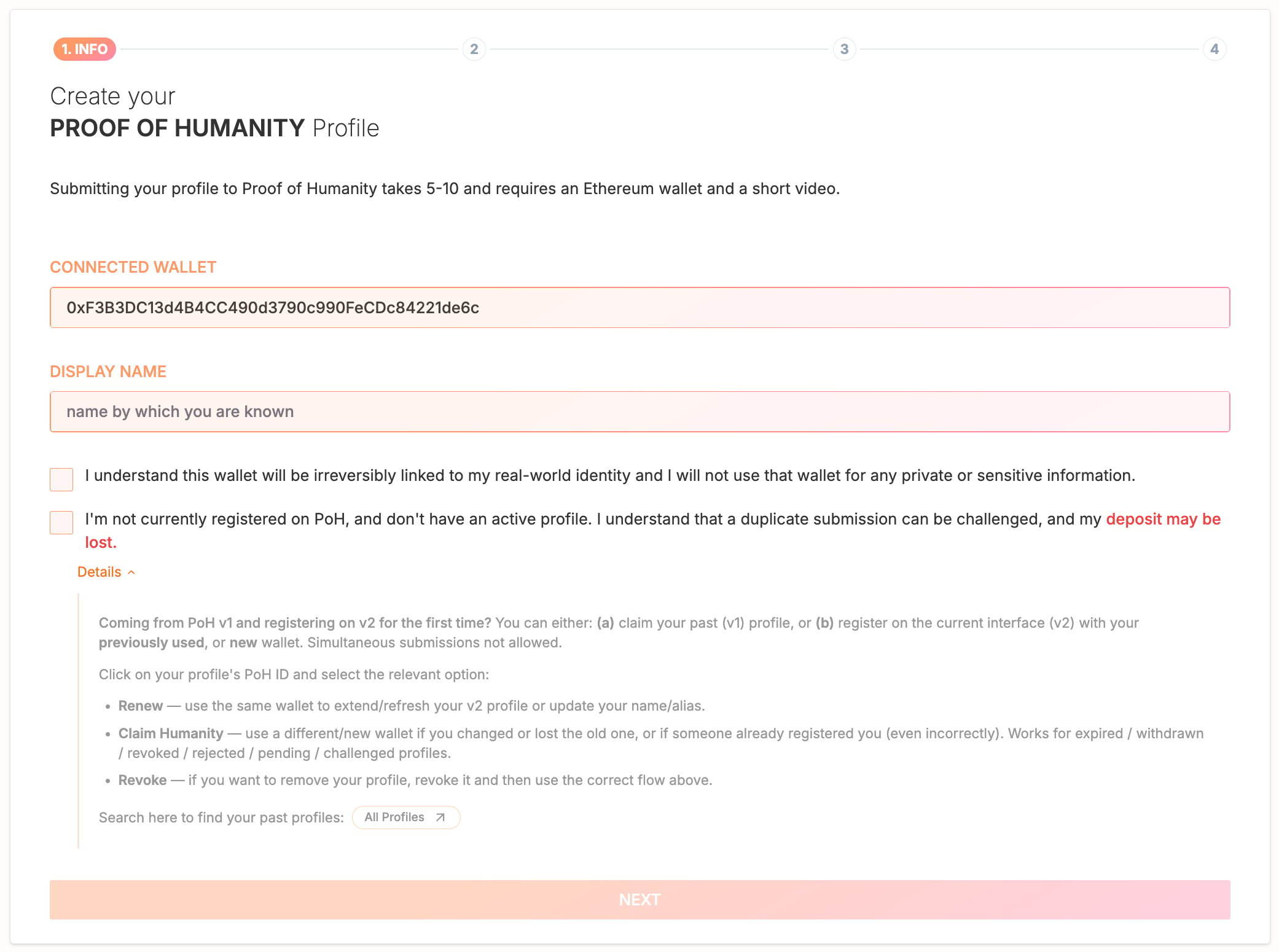
Confirm the wallet address to associate, provide your official or commonly known name, and check the consent box acknowledging the permanent wallet-identity link. Click **Next**.
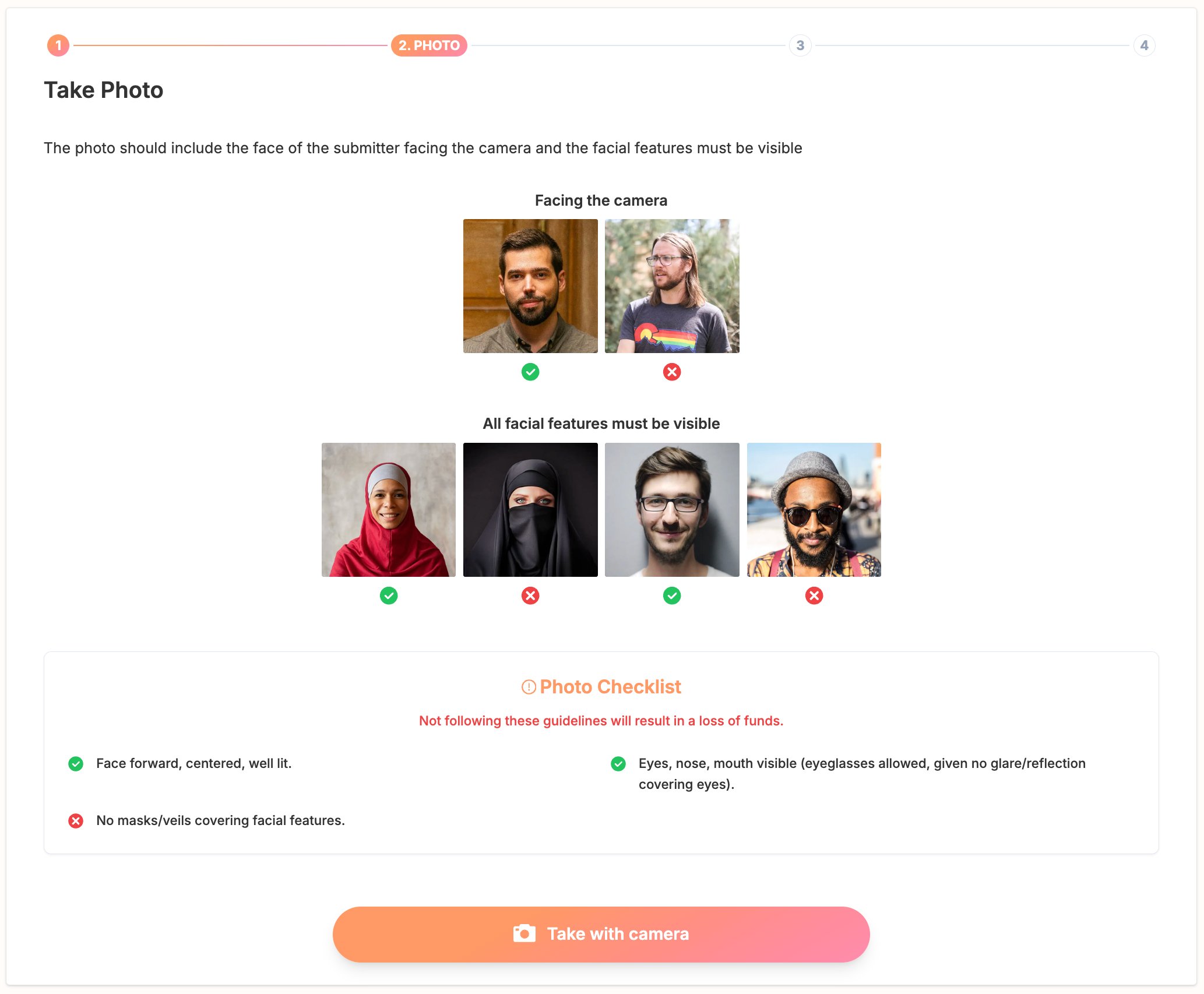
 Review the photo guidelines and checklist, capture a photo using the app camera (with optional cropping), and click **Ready** when satisfied or **Retake** to change it.
Browse "Resolved Claim" profiles for examples of accepted submissions.
Review the photo guidelines and checklist, capture a photo using the app camera (with optional cropping), and click **Ready** when satisfied or **Retake** to change it.
Browse "Resolved Claim" profiles for examples of accepted submissions.
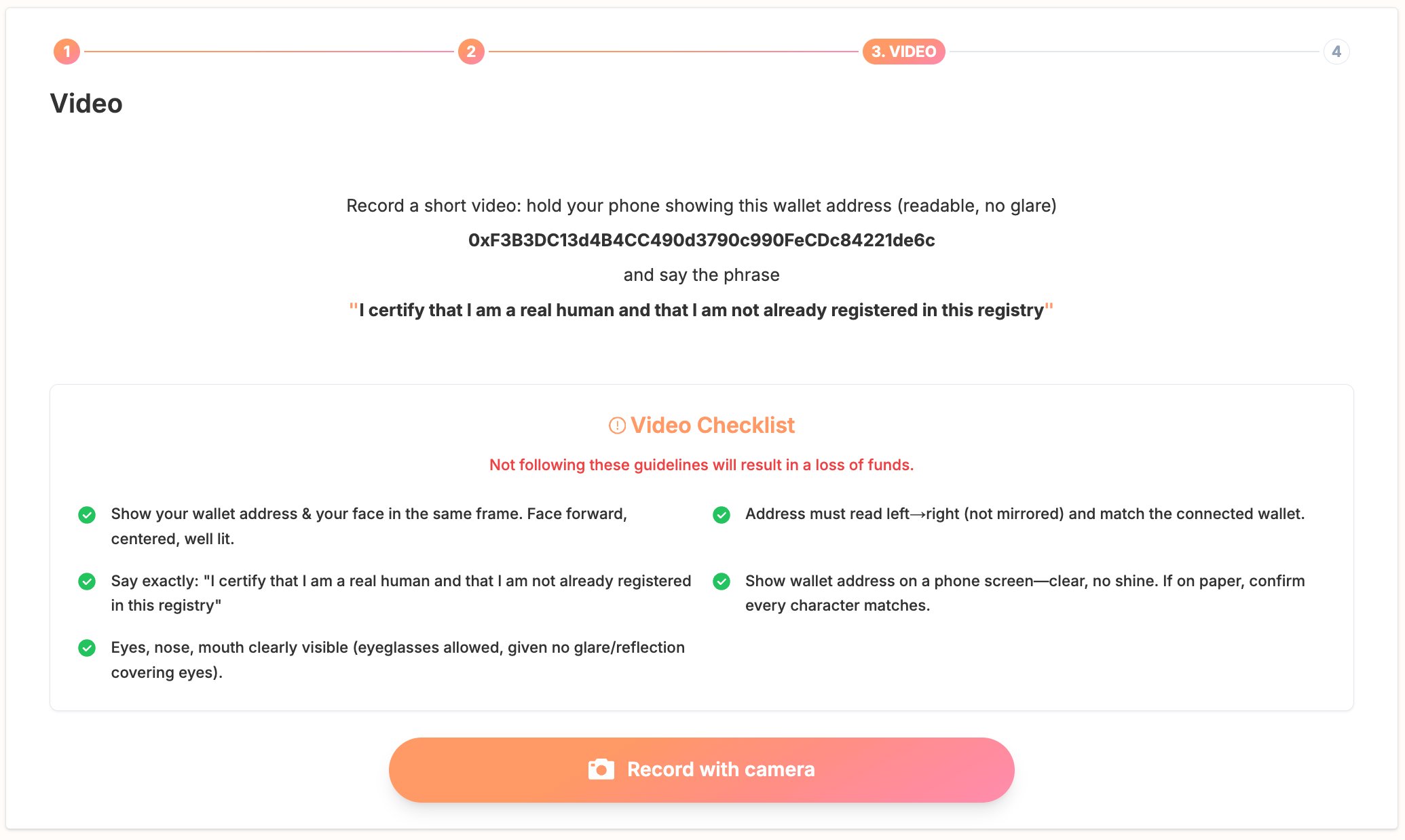
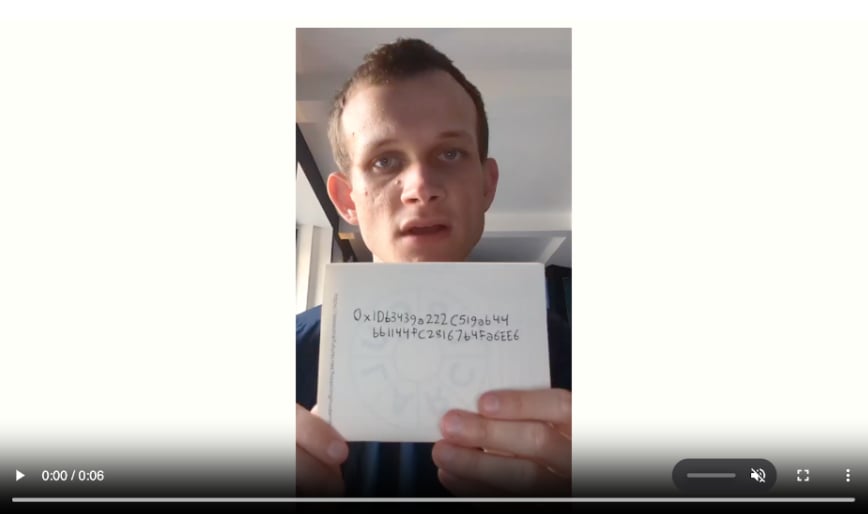
 Record a video showing your face clearly and a sign displaying your complete wallet address (printed, written, or on screen), while saying:
*"I certify that I am a real human and that I am not already registered in this registry"*
Verify the video meets the checklist requirements before proceeding.
Record a video showing your face clearly and a sign displaying your complete wallet address (printed, written, or on screen), while saying:
*"I certify that I am a real human and that I am not already registered in this registry"*
Verify the video meets the checklist requirements before proceeding.
 Double-check all submitted information and enter the required deposit. The deposit is locked with your submission: it incentivizes challengers and covers arbitration fees. Successful registration returns it; a failed registration means losing it.
Make sure you have enough xDAI or ETH for the deposit and transaction fees. Submissions are final, with no editing after submission.
Click **Sign In**, wait for the media upload to complete, and confirm the transaction in your wallet.
***
## Phase 2: Subscribe to Notifications
The notification system is under development. Until it launches, check your profile status manually.
***
## Phase 3: Profile Validation (\~3-5 days)
Profiles progress through: **Needs Vouch → In Review → Verified Human**.
Double-check all submitted information and enter the required deposit. The deposit is locked with your submission: it incentivizes challengers and covers arbitration fees. Successful registration returns it; a failed registration means losing it.
Make sure you have enough xDAI or ETH for the deposit and transaction fees. Submissions are final, with no editing after submission.
Click **Sign In**, wait for the media upload to complete, and confirm the transaction in your wallet.
***
## Phase 2: Subscribe to Notifications
The notification system is under development. Until it launches, check your profile status manually.
***
## Phase 3: Profile Validation (\~3-5 days)
Profiles progress through: **Needs Vouch → In Review → Verified Human**.
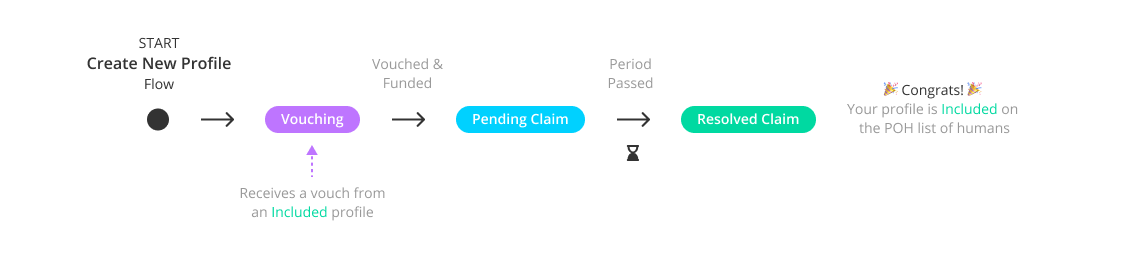 ### From Needs Vouch to In Review
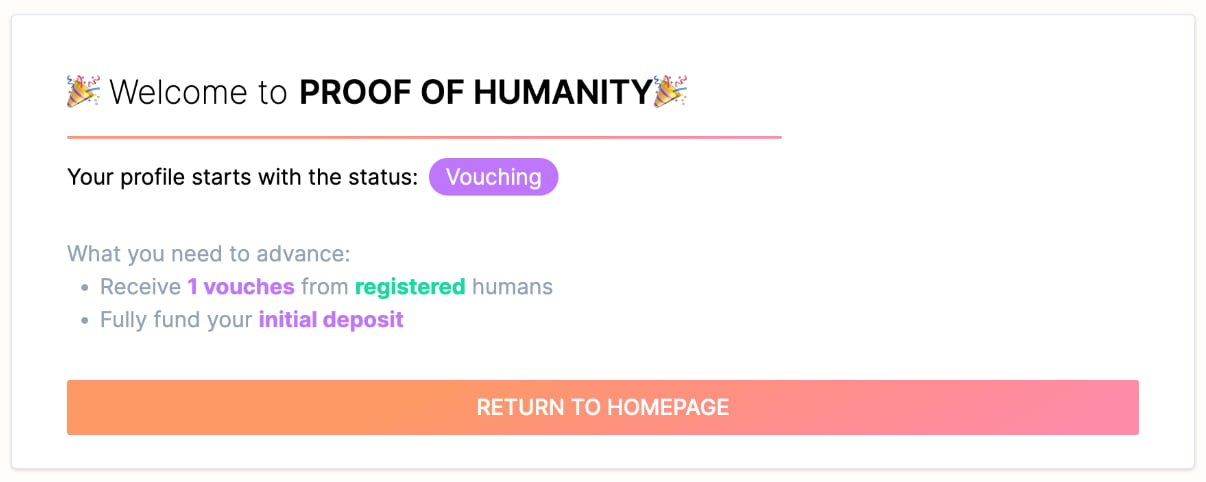
To advance, your profile needs:
* At least 1 vouch from a person with "Resolved Claim" status who knows you
* Full deposit payment (100%)
* Vouch initiation via **Advance**
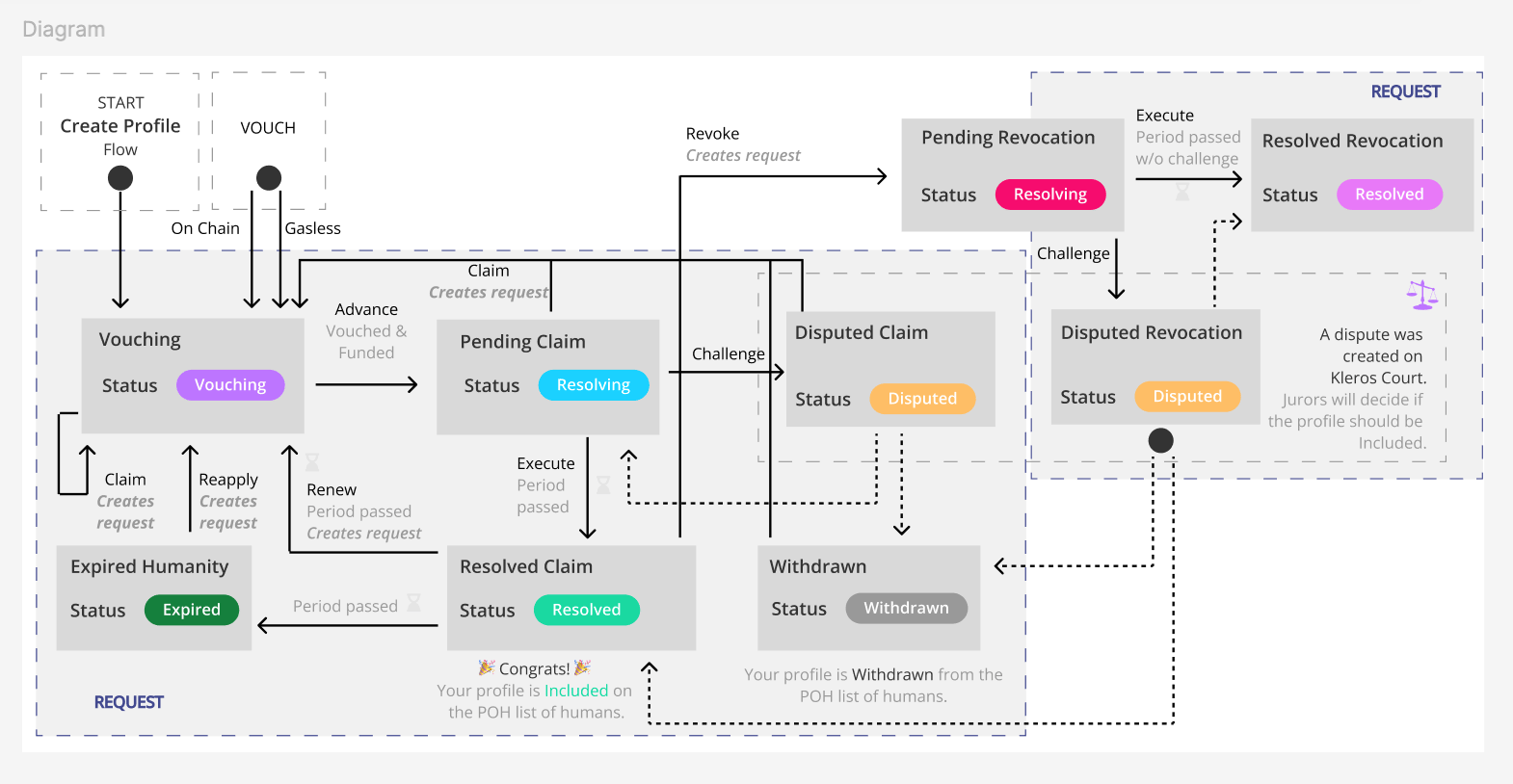
Vouches process sequentially, roughly 3.5 days per person. Multiple simultaneous vouches from one person delay processing for others. If you need to correct something, withdrawal is available only during the vouching phase.
### From In Review to Verified Human
A 3.5-day challenge period lets the community verify compliance:
* **If challenged**: a Kleros Court dispute opens. Provide evidence defending your case. Appeals are available if you disagree with the ruling.
* **If unchallenged**: click **Execute** after 3.5 days to finalize your registration. Any address can submit this transaction. Your deposit is refunded on completion.
Once verified, you gain the ability to vouch for others.
### From Needs Vouch to In Review
To advance, your profile needs:
* At least 1 vouch from a person with "Resolved Claim" status who knows you
* Full deposit payment (100%)
* Vouch initiation via **Advance**
Vouches process sequentially, roughly 3.5 days per person. Multiple simultaneous vouches from one person delay processing for others. If you need to correct something, withdrawal is available only during the vouching phase.
### From In Review to Verified Human
A 3.5-day challenge period lets the community verify compliance:
* **If challenged**: a Kleros Court dispute opens. Provide evidence defending your case. Appeals are available if you disagree with the ruling.
* **If unchallenged**: click **Execute** after 3.5 days to finalize your registration. Any address can submit this transaction. Your deposit is refunded on completion.
Once verified, you gain the ability to vouch for others.
 ***
## Phase 4: Vouch for Another Profile
You must be connected to the app and have "Verified Human" status.
Navigate to the target profile via a shared link or name search.
***
## Phase 4: Vouch for Another Profile
You must be connected to the app and have "Verified Human" status.
Navigate to the target profile via a shared link or name search.
 Click the **Vouch** button on their profile and sign the message from your wallet.
 Two vouch types exist:
* **Vouch**: free, no transaction fees, non-revocable
* **Vouch on-chain**: requires transaction fees, but can be removed while the profile is in the "Needs Vouch" phase
You can vouch for multiple people, but each vouch counts sequentially: once one person moves to "In Review," your next vouch activates on a first-come, first-served basis.
Vouching for sybil or fake submissions risks your own removal from the registry. Vouching for profiles with minor information errors carries no penalty.
***
## What's Next?
Challenge non-compliant profiles or remove your own
Learn how the registry works
Two vouch types exist:
* **Vouch**: free, no transaction fees, non-revocable
* **Vouch on-chain**: requires transaction fees, but can be removed while the profile is in the "Needs Vouch" phase
You can vouch for multiple people, but each vouch counts sequentially: once one person moves to "In Review," your next vouch activates on a first-come, first-served basis.
Vouching for sybil or fake submissions risks your own removal from the registry. Vouching for profiles with minor information errors carries no penalty.
***
## What's Next?
Challenge non-compliant profiles or remove your own
Learn how the registry works